

Esta página aún no está traducida al español, así que estás leyendo la versión en inglés.
Create a class or a course
The programme editor: the lead and assistant coach, time and repeats, seats and price, audience, content, images and videos, and publishing.
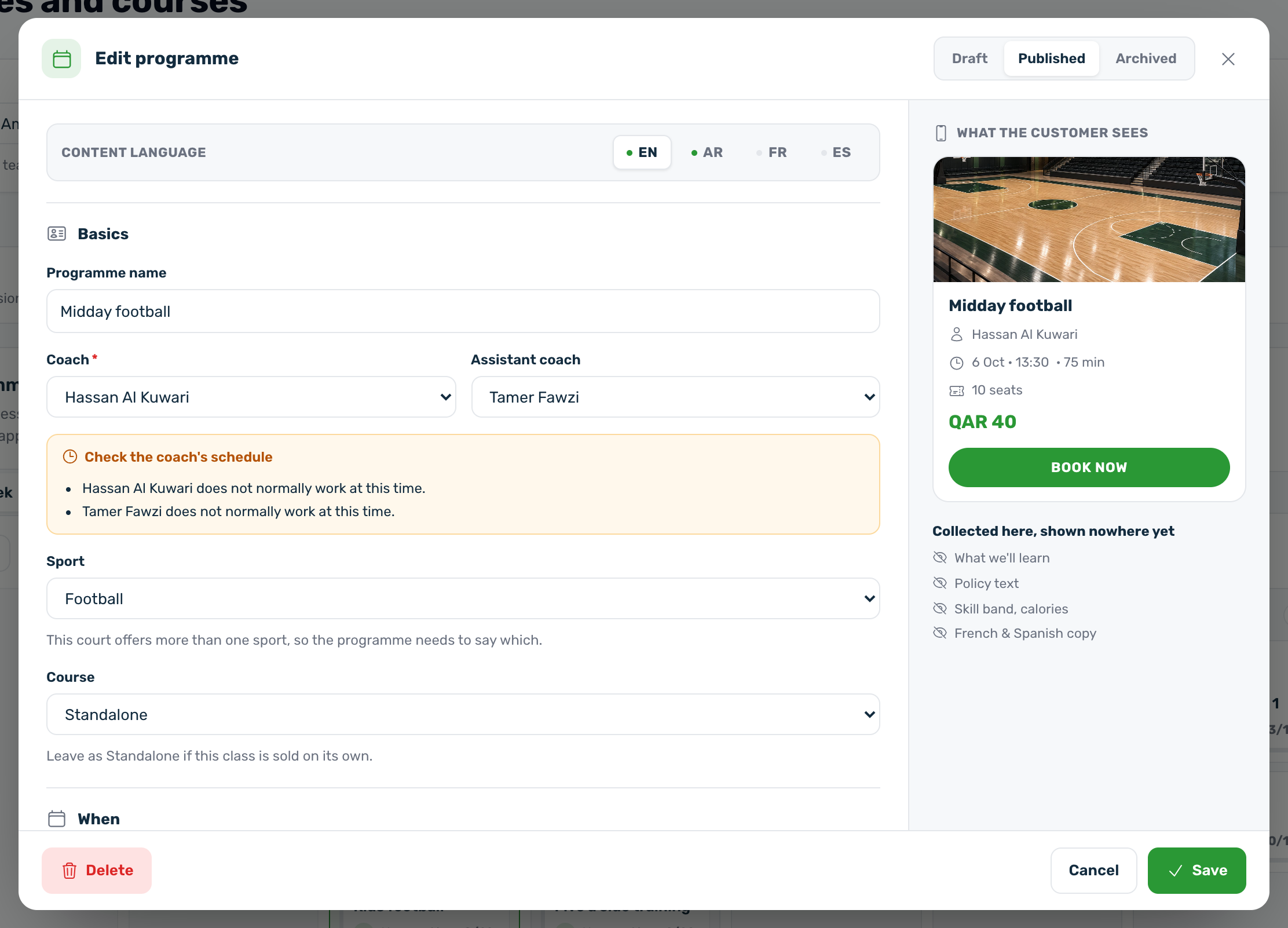
The editor opens from New programme or from a class you click. Its title reads New class, New repeating class, New course package or Edit programme. A preview on the side shows the card as players see it.
Status#
At the top, choose Draft, Published or Archived. Only Published reaches players and coaches. Use Draft while you prepare, and Archived to take a class off without deleting it.
Basics#
| Field | What to know |
|---|---|
| Programme name | Required. Type it in English first, because the apps fall back to English. Pick the Content language above to type the name, description, learning points and policy in Arabic, French or Spanish. |
| Coach | The lead coach. Required when the Coach service is on. If your club has no active coach yet, the editor shows Add a coach first with a button to Open Coaches. |
| Assistant coach | Optional. No assistant by default. |
| Sport | Asked only when the court or club offers more than one sport. |
| Course | For a class: Standalone, or the course it belongs to. |
On a new class, picking a coach sets the length to their usual session length.
When#
- One class: Date, Start time and Duration (30, 45, 60, 75, 90 or 120 min).
- Repeating class: Repeats on (the days of the week), From and To (the date range), Times each day (add as many as you need) and Duration. The editor counts the sessions it will create before you save.
- Course package: Course runs From and To, and Classes per month, shown on the course card. Total sessions is counted from the sessions attached to the course.
A course is a bag of sessions#
A course package is sold as one purchase and holds its own sessions. Create the package first, then attach sessions to it: choose the course in the Course field of a class or a repeating class, or use Add a session to this course in the Courses view. Each session keeps its own date and time. A course with no sessions cannot be bought.
The coaches of a course see every one of its sessions in their schedule, even when a session has no coach of its own.
Seats and price#
- Capacity: seats per session. 0 means no limit.
- Price, or Package price for a course, and Currency. A price of 0 makes it free.
- Compare at price: optional.
- Pin to top of this court's list: sorts it first. It does not draw a badge in the app.
Audience and level#
Who can join (Mixed, Male or Female), Level from the levels of the sport, and the optional skill band and calories.
Description and policy#
Description, What we'll learn, What's included and Policy, each in the content language you picked.
Images and videos#
Classes and courses take the same media. Each one has one cover:
- Upload cover or clip: a JPG, PNG or WebP image up to 5 MB, or an MP4, MOV or WebM video up to 50 MB.
- Or paste a video link for a clip hosted elsewhere. An uploaded file wins over a link.
- Add a video thumbnail: optional, for a video cover. The still players see before the video plays. Without it, the app shows the clip's first frame.
Uploading an image removes a video and its thumbnail, and uploading a video removes the image. A cover image or a video is enough, and the editor reminds you until one is there. A 16:9 picture of at least 1200 by 675 pixels works best.
Save, change or delete#
- Press Create for something new, or Save when editing.
- Changing a published class's date or time tells its coaches. Taking it off with Draft or Archived, or deleting it, tells them it was cancelled.
- Delete asks Remove this programme? Anyone already enrolled keeps their booking.