

Cette page n’est pas encore traduite en français. Vous lisez la version anglaise.
App access for coaches
Link a coach to their club member account so they get a coach area in your app, what they can see, and how to take it away.
A coach does not get a separate login. They use the club's app with their own member account, the one they sign in to with their phone code. You give that account a coach area by linking it to the coach.
Give access#
-
Ask the coach to register
The coach needs a member account in your club's app, made with their phone number. -
Open the coach
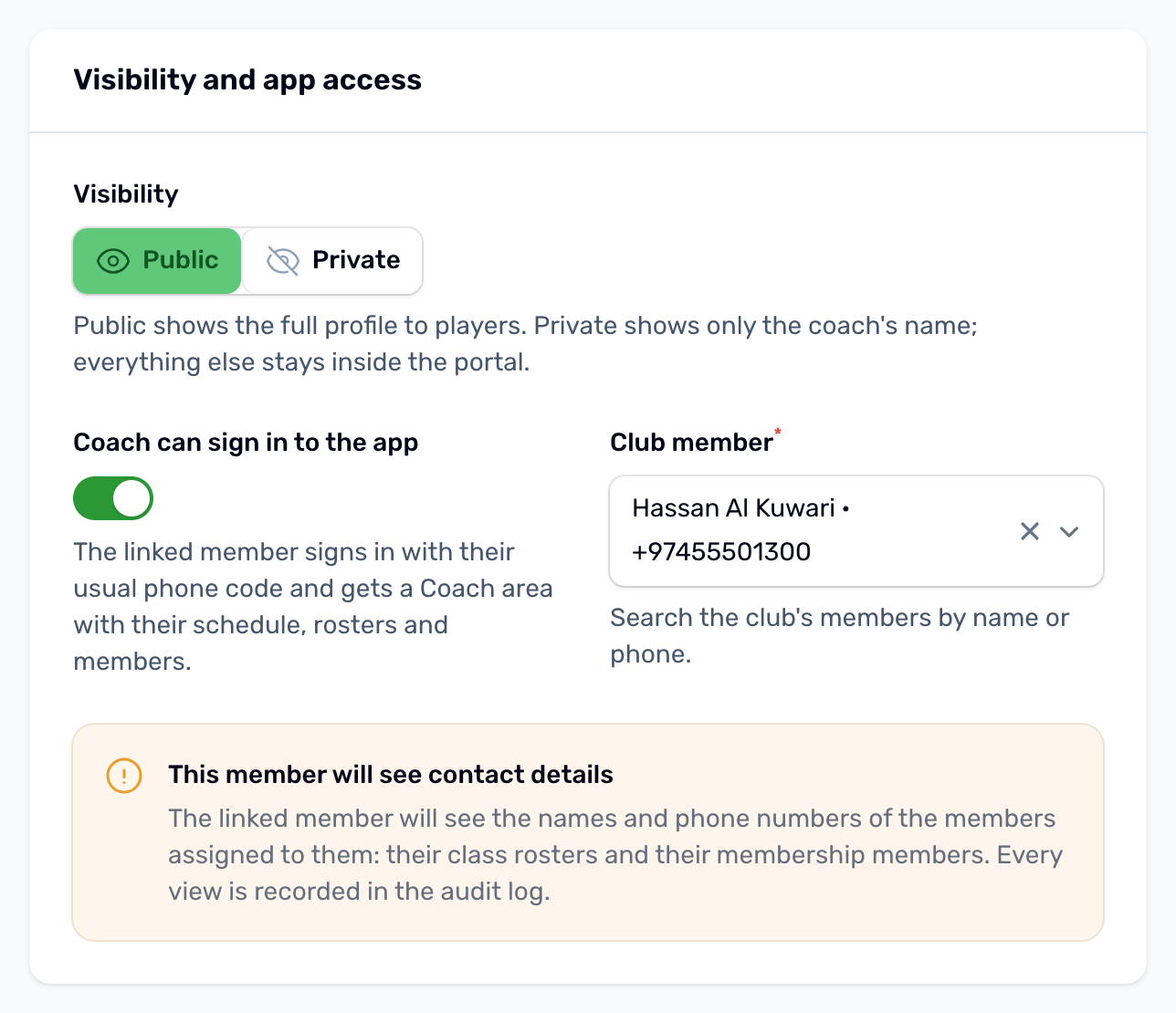
On the Coaches page, open the coach and go to Visibility and app access. -
Turn on Coach can sign in to the app
The Club member field appears. Search by the member's name or phone and pick them. -
Read the warning and save
The form warns that this member will see contact details. Save the coach.
A member can be linked to one coach of your club only. The list shows Can sign in in the App column only when the switch is on and a member is linked.
What the coach sees in the app#
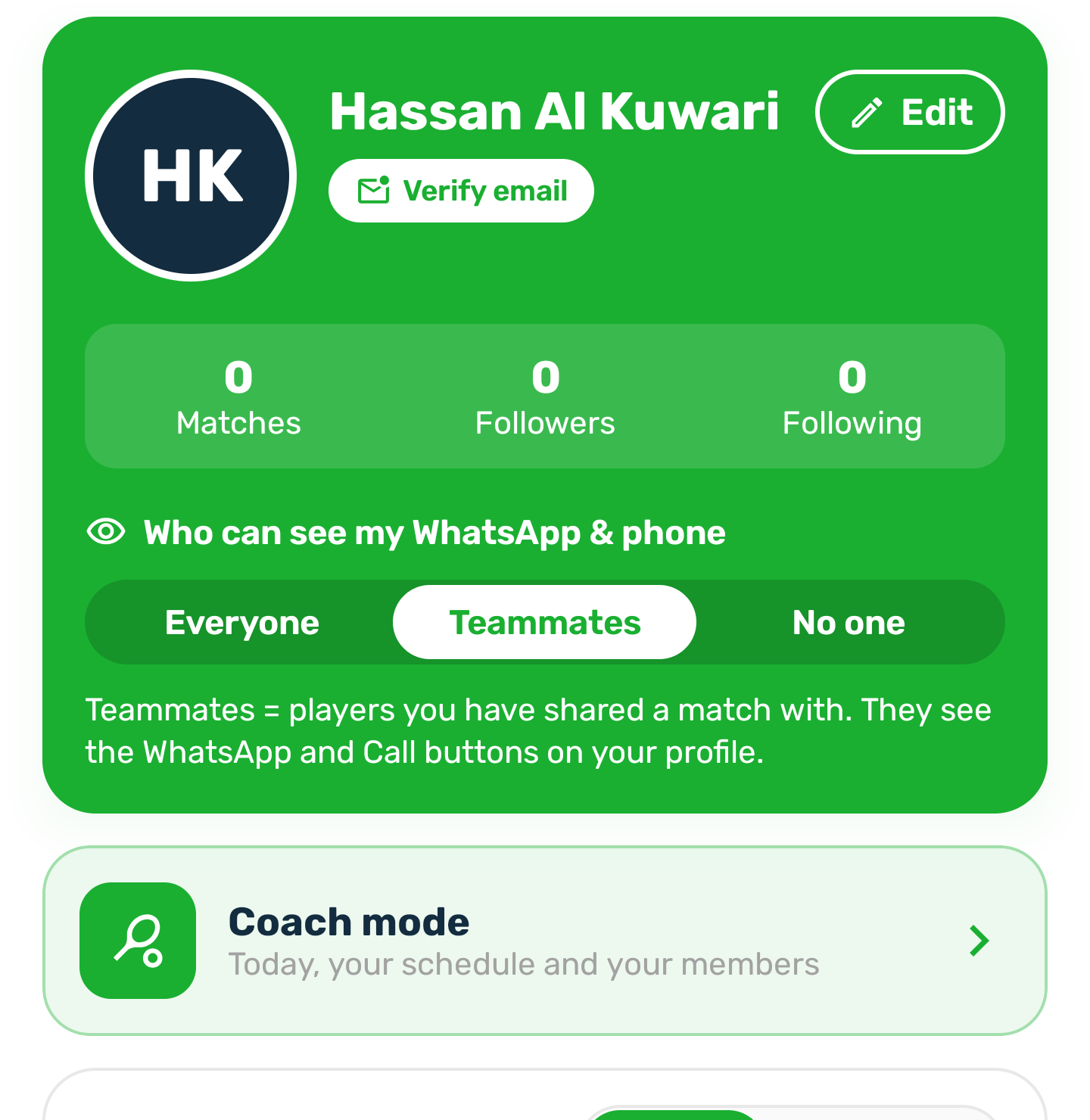
- Their schedule: the published classes they lead or assist, every class of a course they are on, and those courses.
- For each class, the people booked on it with their name, phone number, payment status, whether they came, and the sports and levels on their player profile. A walk in shows the name and phone your staff typed.
- Attendance, which they can mark from the day of the class.
- Members: the paid, current memberships whose member chose them, or whom you assigned to them, with the plan, the dates and the member's phone.
The full tour is in The coach area.
Privacy rules#
- A coach only sees people assigned to them: the bookings on their own classes and the members who chose them. There is no list of every member.
- Drafts and archived classes never show in the coach area.
- Every time a coach opens a roster or a member, and every attendance change, is recorded in your club's audit log under the coach's own account.
- Players never see the linked member, and never see a coach's phone, email or WhatsApp.
- A Private coach sees no phone numbers at all: rosters and members show names only, with no call or message button. Use Private when a coach must not contact members directly, for example under an NDA or when all contact goes through the club.
Take access away#
Any of these closes the coach area at once, even on a phone that is already signed in:
- turning off Coach can sign in to the app (the linked member is kept, so turning it back on needs no new search)
- setting the coach to Inactive
- switching off the Coach service