
Esta página aún no está traducida al español, así que estás leyendo la versión en inglés.
The Assistant page
The switch, the name and greeting in four languages, what players can do, WhatsApp, the live preview and saving.
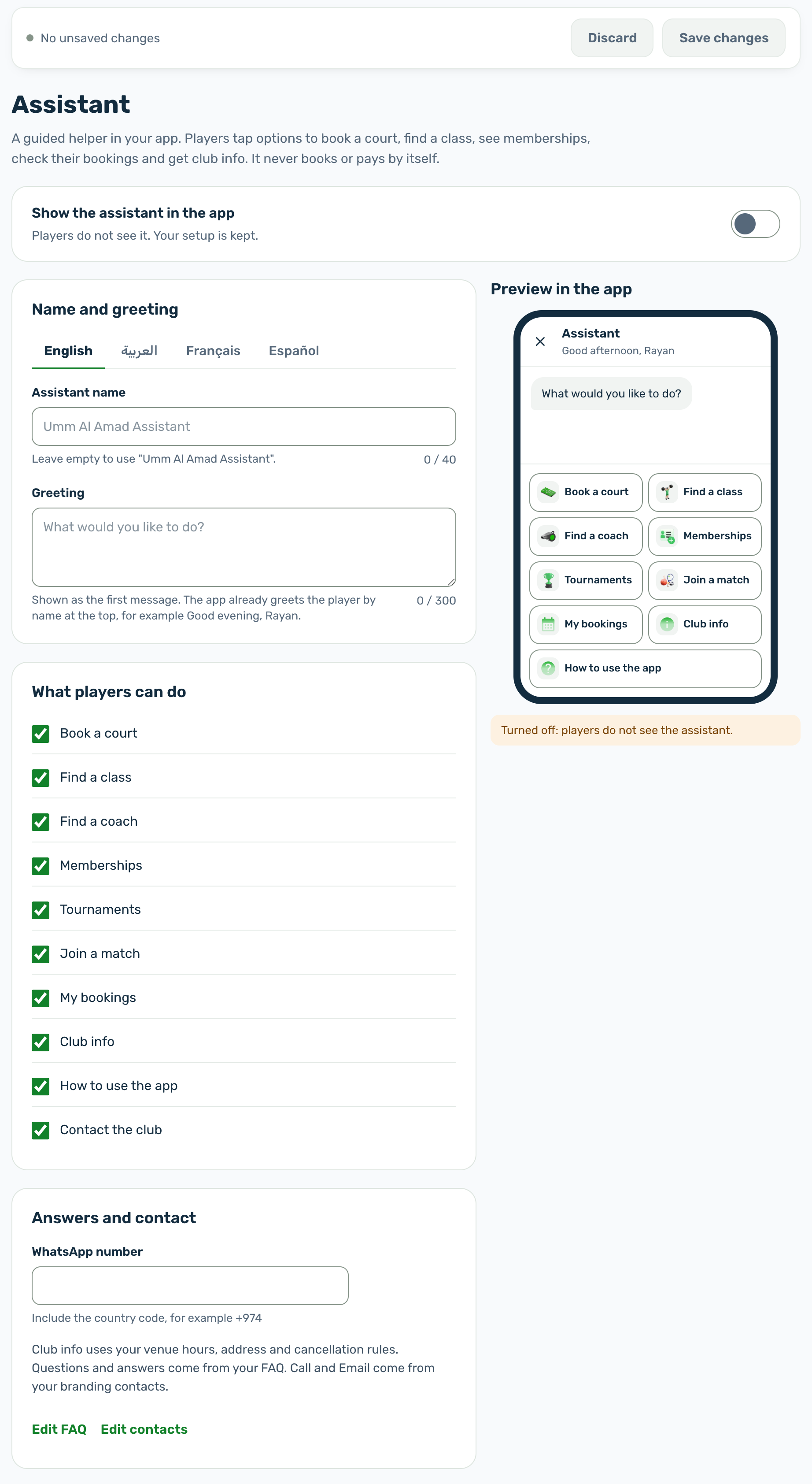
Everything about the assistant is on one page: Settings, Assistant in the club portal. The admins who see it are those whose role includes it. The settings are on the left and a live preview of the app is on the right.
Show the assistant in the app#
The switch at the top decides whether players see the assistant, as a chat bubble on Home. While it is off, the line under it reads Players do not see it. Your setup is kept.
- Turning it on asks for your login PIN in the Confirm your login PIN dialog. Type the 4 to 6 digits in Login PIN and choose Confirm and save. This saves the whole page, with the switch on. Cancel leaves it off.
- If you confirmed your PIN in the last 15 minutes, the portal does not ask again. The switch turns on and you save with Save changes.
- Three wrong PINs lock the step for a few minutes. It is the same lock as on the other Settings pages.
- Turning it off, and every other change on this page, never asks for the PIN. Your name, greeting and choices are kept for when you turn it back on.
Name and greeting#
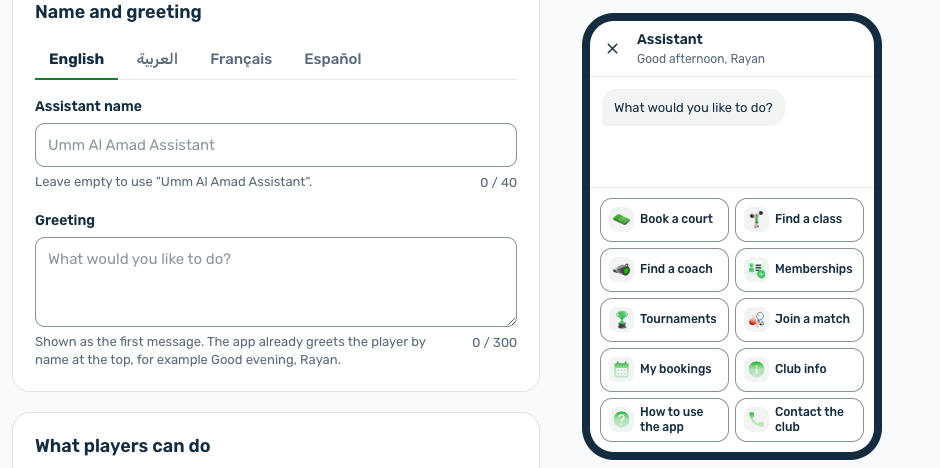
Write the name and the greeting separately in each language, using the tabs English, العربية, Français and Español. Players see the language their app is set to. A counter under each field shows how many characters are used.
| Field | Limit | Left empty | Where players see it |
|---|---|---|---|
| Assistant name | 40 characters | Your club's name followed by Assistant, for example Pearl Sports Club Assistant. In Arabic, مساعد followed by the club's name. | The spoken label of the chat bubble on Home, Open Pearl Assistant. |
| Greeting | 300 characters | What would you like to do? In Arabic, ماذا تود أن تفعل؟ | The first message, above the menu. |
The top of the assistant screen always says Assistant, with a greeting by the time of day and the player's first name, such as Good evening, Rayan. So the greeting does not need the player's name. If you want it anyway, write {first_name} exactly like that: Hi {first_name}, ready to play? reads Hi Rayan, ready to play? for a signed in player and Hi, ready to play? for a guest.
What players can do#
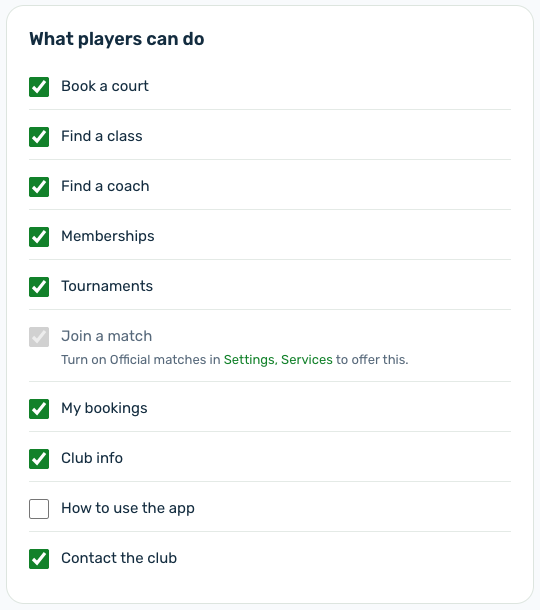
One checkbox per option of the menu. Untick an option to hide it from the menu without turning its service off. They show in the app in this order, and every one is ticked at the start.
| Option | Needs |
|---|---|
| Book a court | The Courts service |
| Find a class | The Classes service |
| Find a coach | The Coach service |
| Memberships | The Membership service |
| Tournaments | The Tournament service |
| Join a match | The Official matches service |
| My bookings | Nothing, always available |
| Club info | Nothing, always available |
| How to use the app | Nothing, always available |
| Contact the club | At least one contact: WhatsApp on this page, or the support phone or email in Branding |
An option whose service is off is greyed out with a note under it, for example Turn on Official matches in Settings, Services to offer this. The link opens the Services tab. Your choice for that option is kept and applies again once the service is back on.
Answers and contact#
- WhatsApp number: the number players reach on WhatsApp from Contact the club. Include the country code, for example +974. It takes 6 to 20 digits, and spaces and brackets are fine. Leave it empty to show no WhatsApp row.
- Edit FAQ opens the FAQ in Settings, Policies & help, which feeds Questions and answers under Club info.
- Edit contacts opens Settings, Branding, where the Support phone number and Support email feed Call and Email.
The preview#
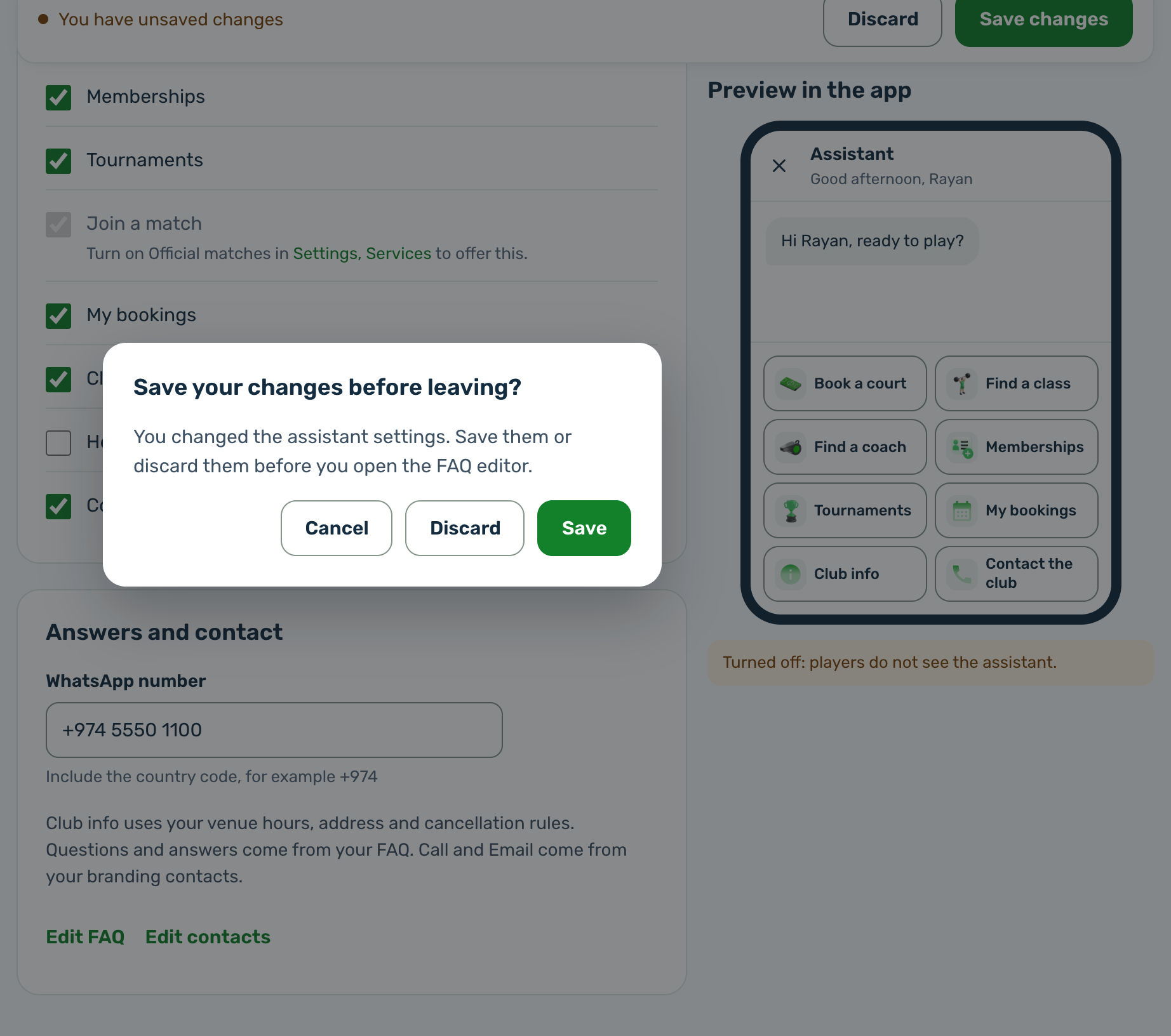
Preview in the app shows the top of the assistant and its menu as players see them, in the language of the selected tab, with Rayan as a sample name. It follows what you type and tick before you save: an empty greeting shows that language's default, and an option you untick leaves the menu. While the switch is off, a note under it says Turned off: players do not see the assistant.
Saving#
The bar at the top of the page shows No unsaved changes, You have unsaved changes or Changes saved, with two buttons:
- Save changes saves every field of every language at once.
- Discard puts the page back to what was last saved.
Both buttons do nothing while there is nothing to save. If a field in another language needs fixing, the page says which tab, for example The changes could not be saved. Check the العربية tab., and the tab shows how many fields to fix.
With unsaved changes, following Edit FAQ, Edit contacts or the Settings, Services link opens Save your changes before leaving? Choose Save to save and go, Discard to drop the changes and go, or Cancel to stay. Leaving another way, through the sidebar or by closing the tab, gets the browser's own warning.
When the plan does not include it#
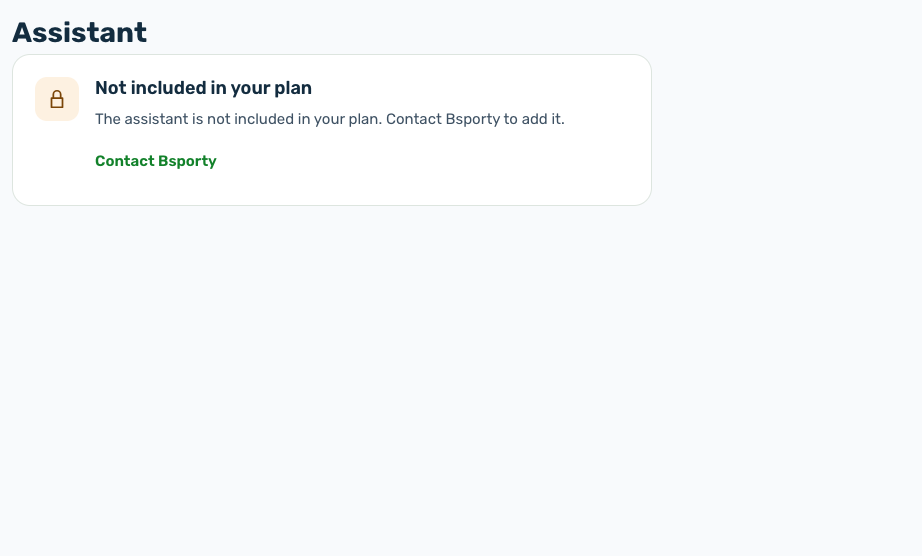
The page then shows only Not included in your plan: The assistant is not included in your plan. Contact Bsporty to add it. The Contact Bsporty link writes to the platform team.