
Esta página aún no está traducida al español, así que estás leyendo la versión en inglés.
Classes, plans, club info and more
What every other option asks and shows, from Find a class to the How to use the app guides.
Every option works the same way: a few questions, then cards with a button that opens the right screen of the app. Back and Start over are always at the end of the options.
Find a class#
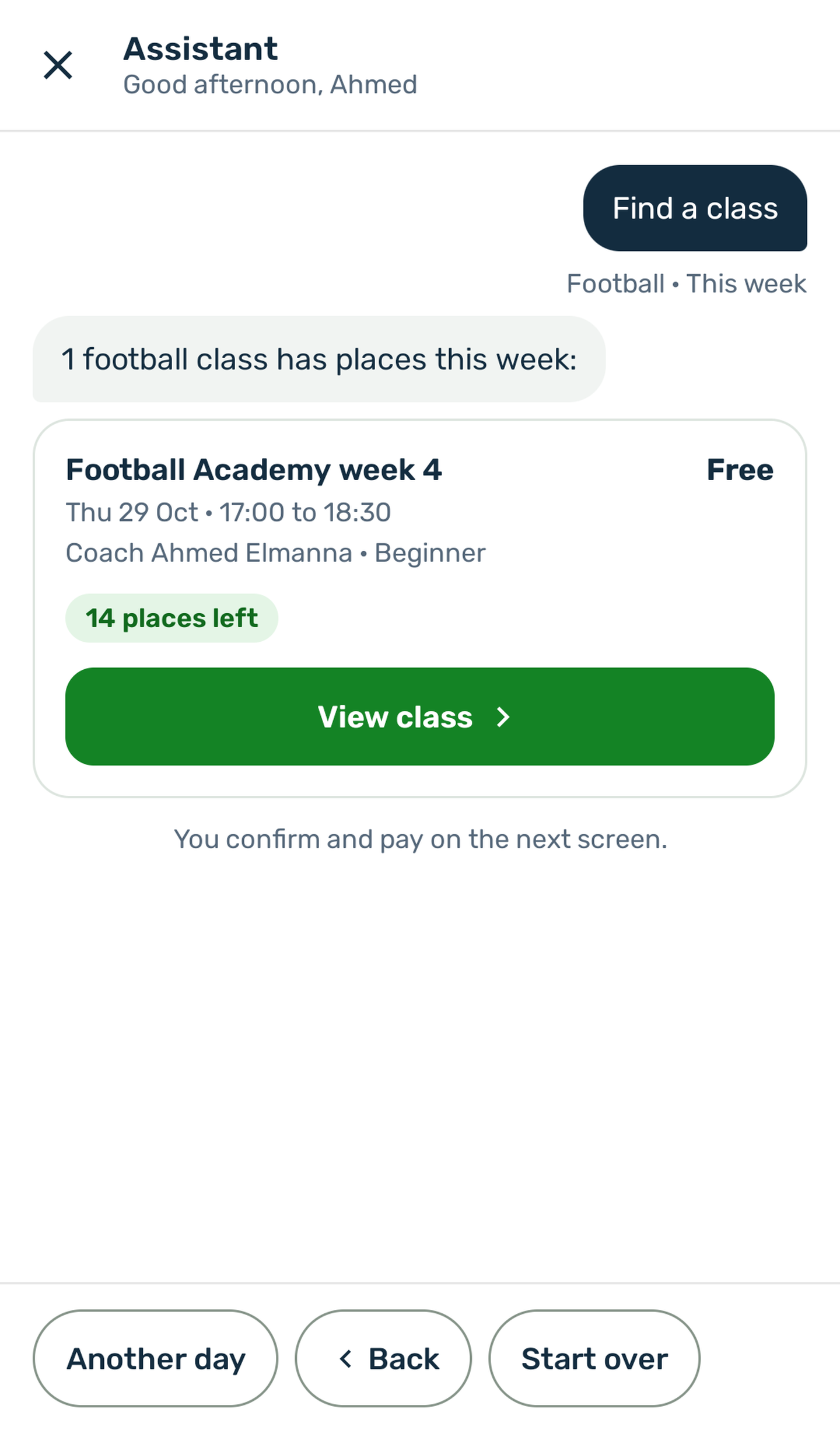
Which sport? lists the sports with upcoming classes, then Which day? offers Today, Tomorrow, the next days and This week. The answer reads, for example, 1 football class has places this week: with one card per class: title, price or Free, date and time, coach, ages and level, and the places left or Full. View class opens the class, where the player joins and pays.
Find a coach#
Which sport?, then Any preference? with Male coach, Female coach or No preference. Each card shows the coach's photo or initials, name, sports and rating. See coach opens the coach's profile. These cards have no price.
Memberships#
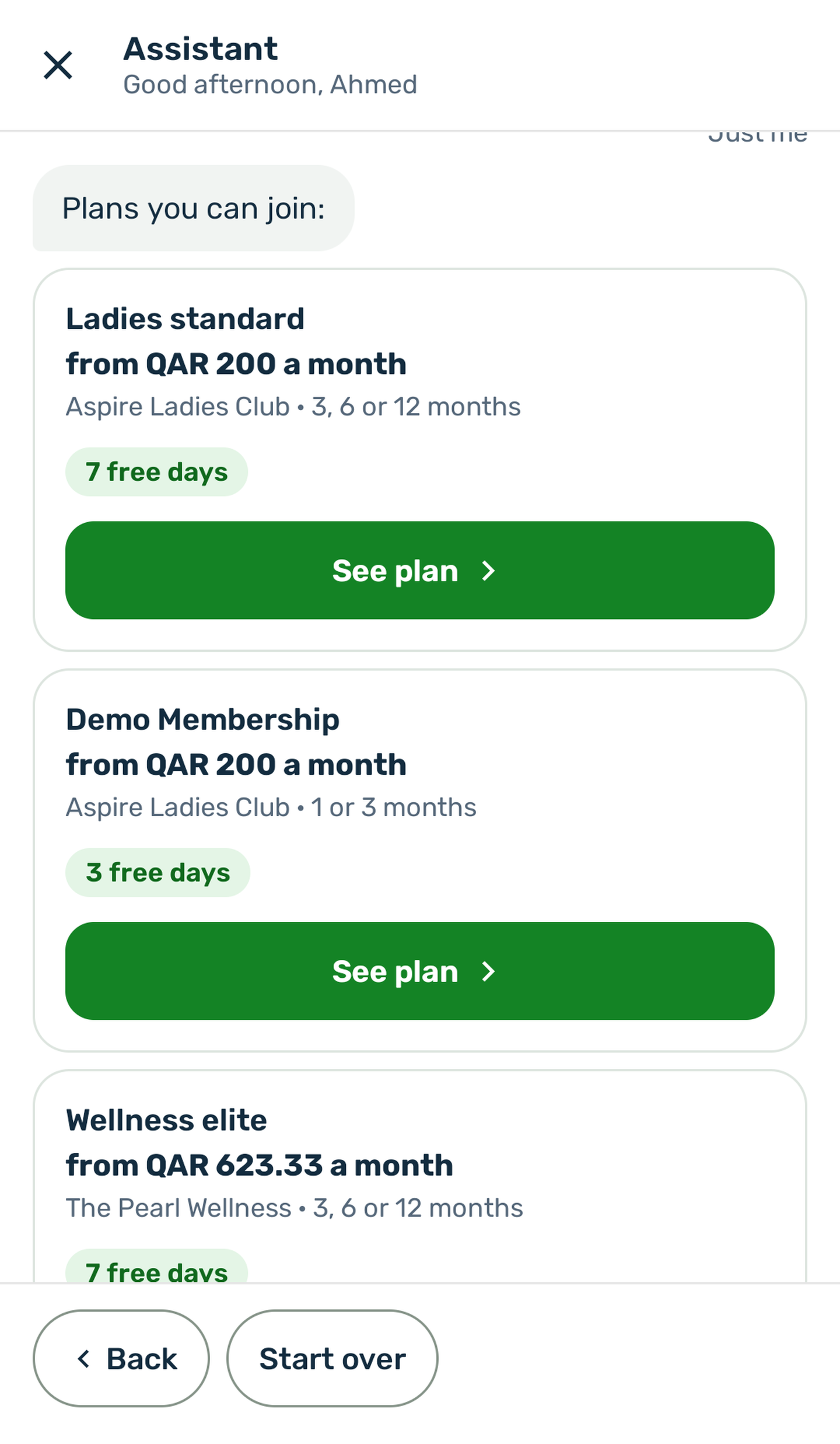
Who is it for? offers Just me, Me and my partner and My family, but only those that have plans. Each plan card shows its name, a price such as from QAR 200 a month, the club and lengths, the free days when there are any, and Full when it is full. See plan opens the club's membership screen on that plan.
Tournaments#
No question: the assistant lists what is Open for registration: with the fee, such as QAR 200 per team, the sport, dates and team size, and the spots left. See tournament opens the tournament.
Join a match#
Which day?, then Matches with free spots on Tue 28 Oct: with the price, sport, format such as 2 vs 2, time and court, and the spots left. See match opens the match, where the player picks a spot.
My bookings#
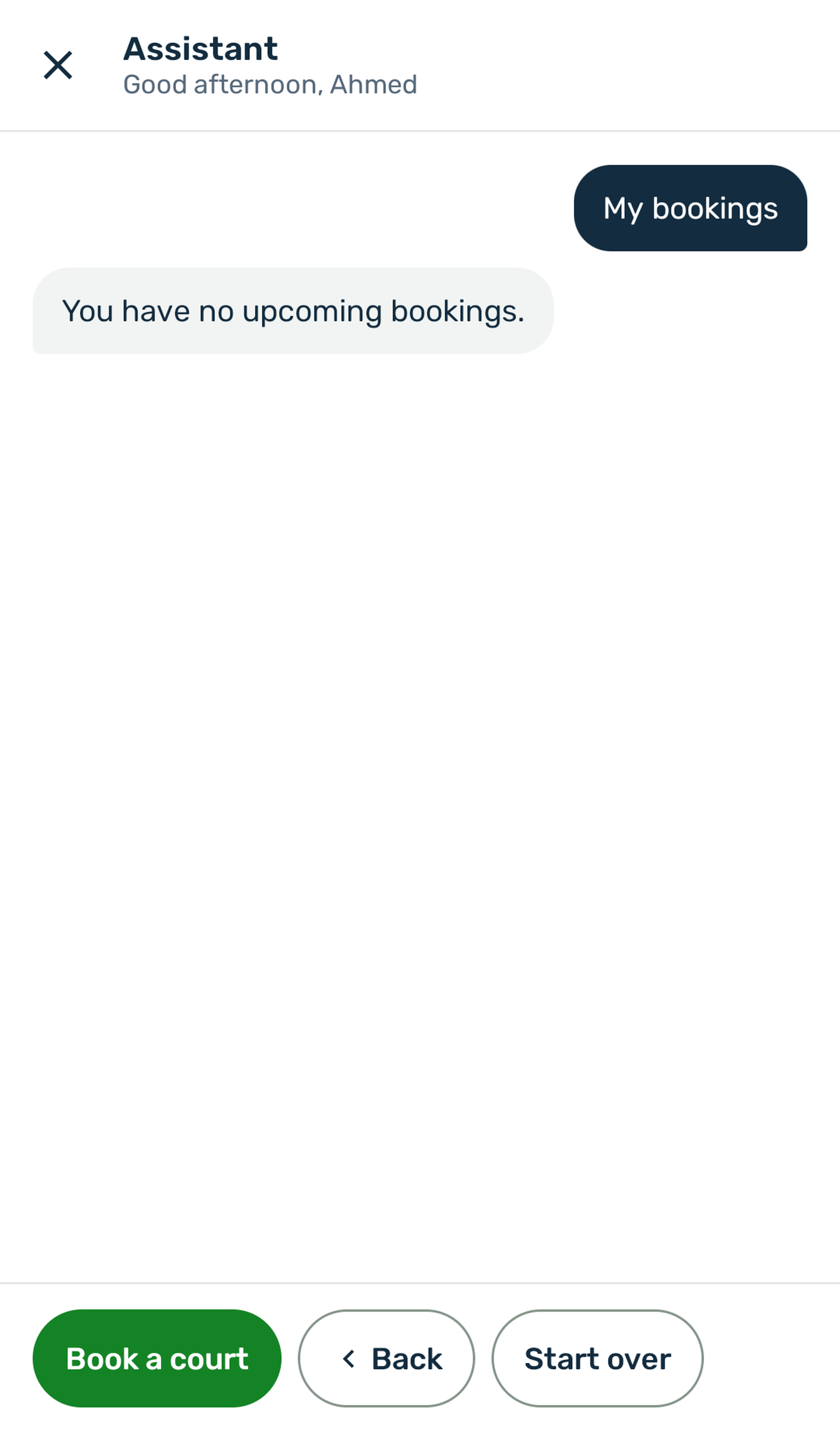
A signed in player sees Your upcoming bookings: with up to three of the next court bookings and classes: the day, the title, the time and a status such as Paid or Enrolled. See all opens the bookings in their profile. With nothing coming up, the assistant says You have no upcoming bookings. and offers Book a court. A guest is asked to sign in.
Club info#
The assistant asks What would you like to know? and offers:
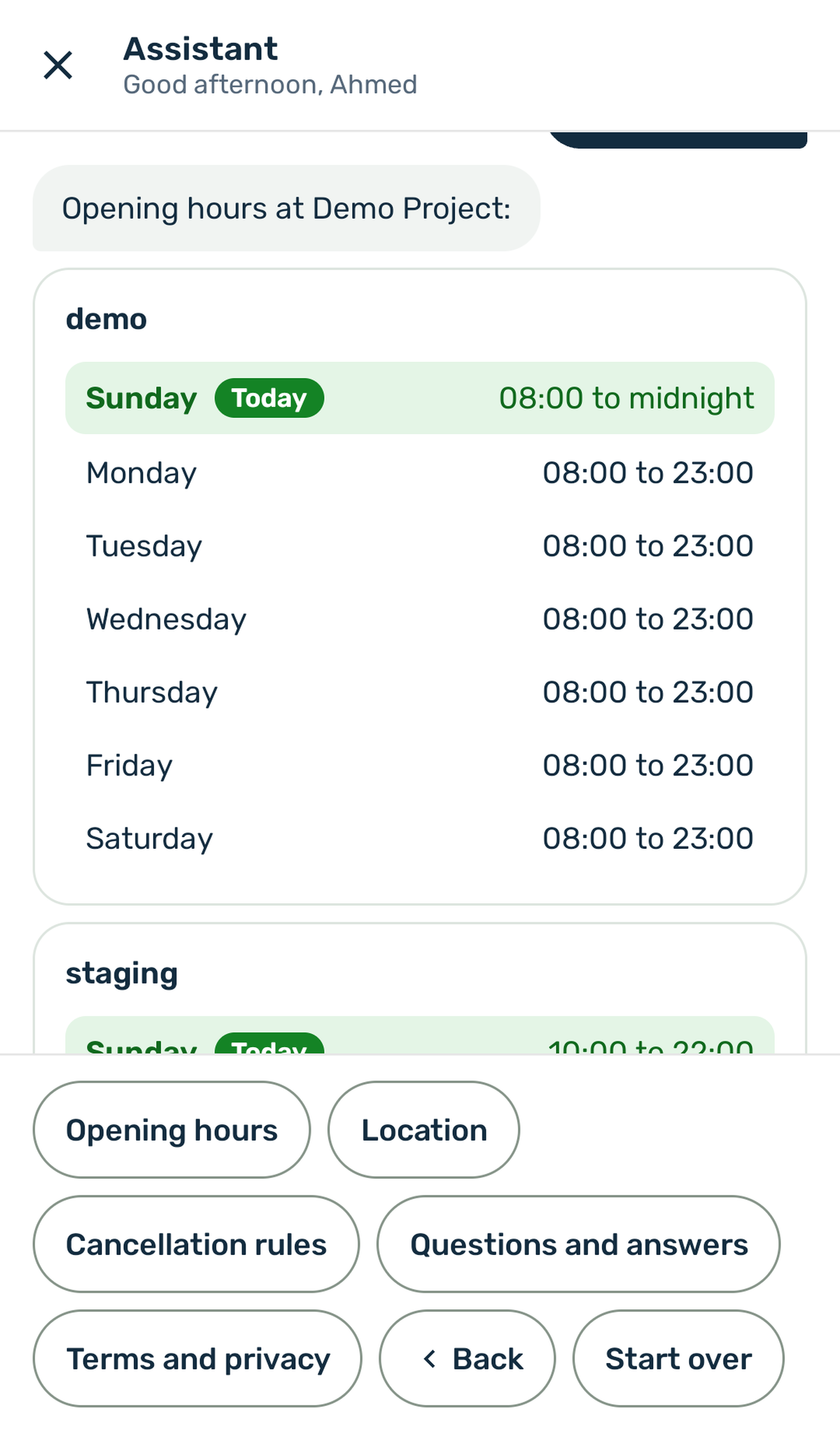
- Opening hours: one card per branch with the seven days, today marked Today and closed days shown as Closed.
- Location: one card per branch with its address and a Directions button.
- Cancellation rules: the refund rules for court bookings, one sentence each.
- Questions and answers: your questions as options. A tap shows the answer, and the questions stay below for the next one. Shown only when you have questions.
- Terms and privacy: Terms and Privacy open your legal pages.
After each answer the same options stay, so a player can read the hours and then the rules without going back.
Contact the club#
A card with Call, WhatsApp and Email, each opening the phone, WhatsApp or mail app. Only the contacts you set are shown.
How to use the app#
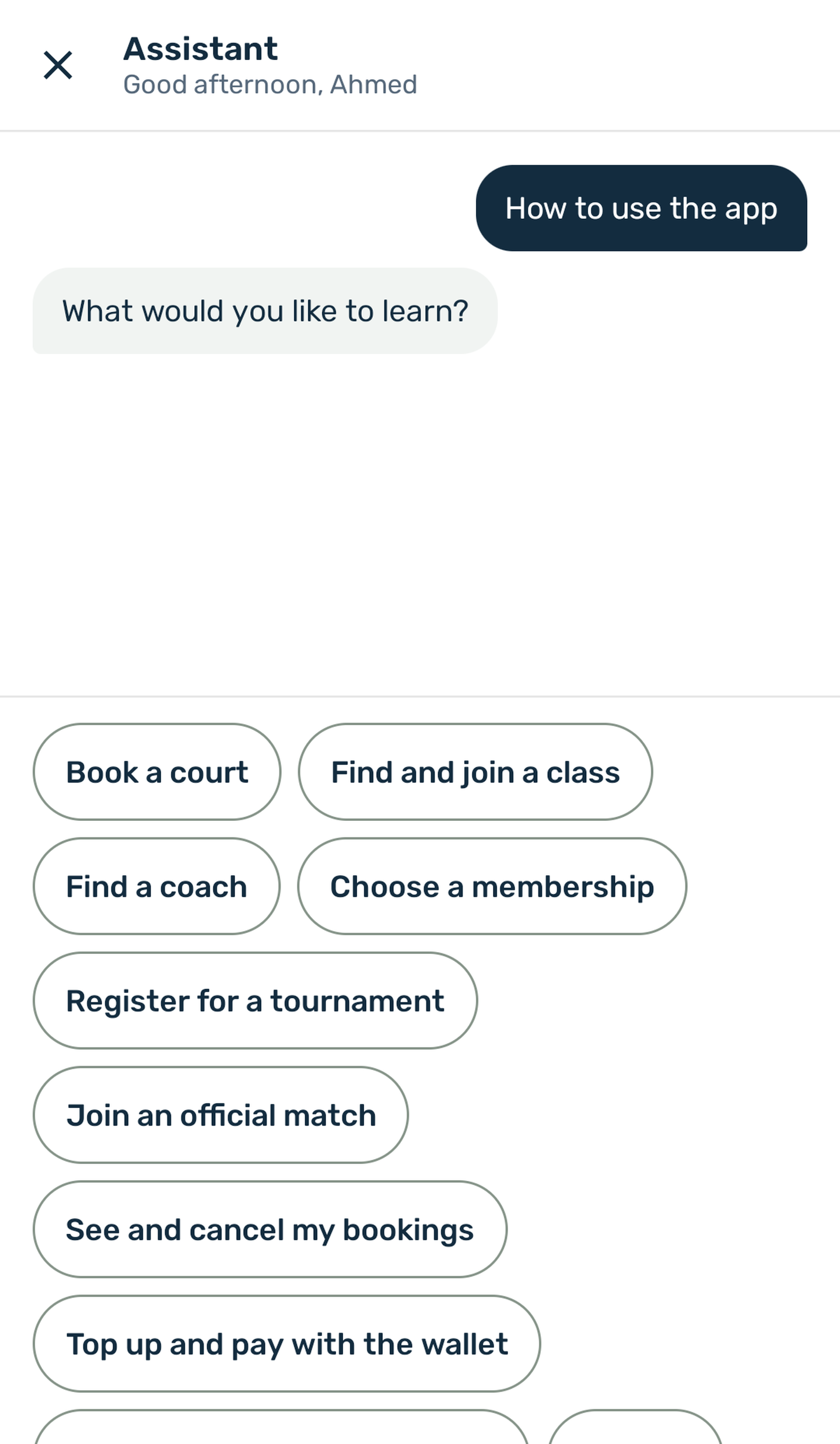
The assistant asks What would you like to learn? and offers a guide for each service your club has on, plus three that every club has:
| Guide | Shown when |
|---|---|
| Book a court | Courts is on |
| Find and join a class | Classes is on |
| Find a coach | Coach is on |
| Choose a membership | Membership is on |
| Register for a tournament | Tournament is on |
| Join an official match | Official matches is on |
| See and cancel my bookings | Always |
| Top up and pay with the wallet | Always |
| Create an account and sign in | Always |
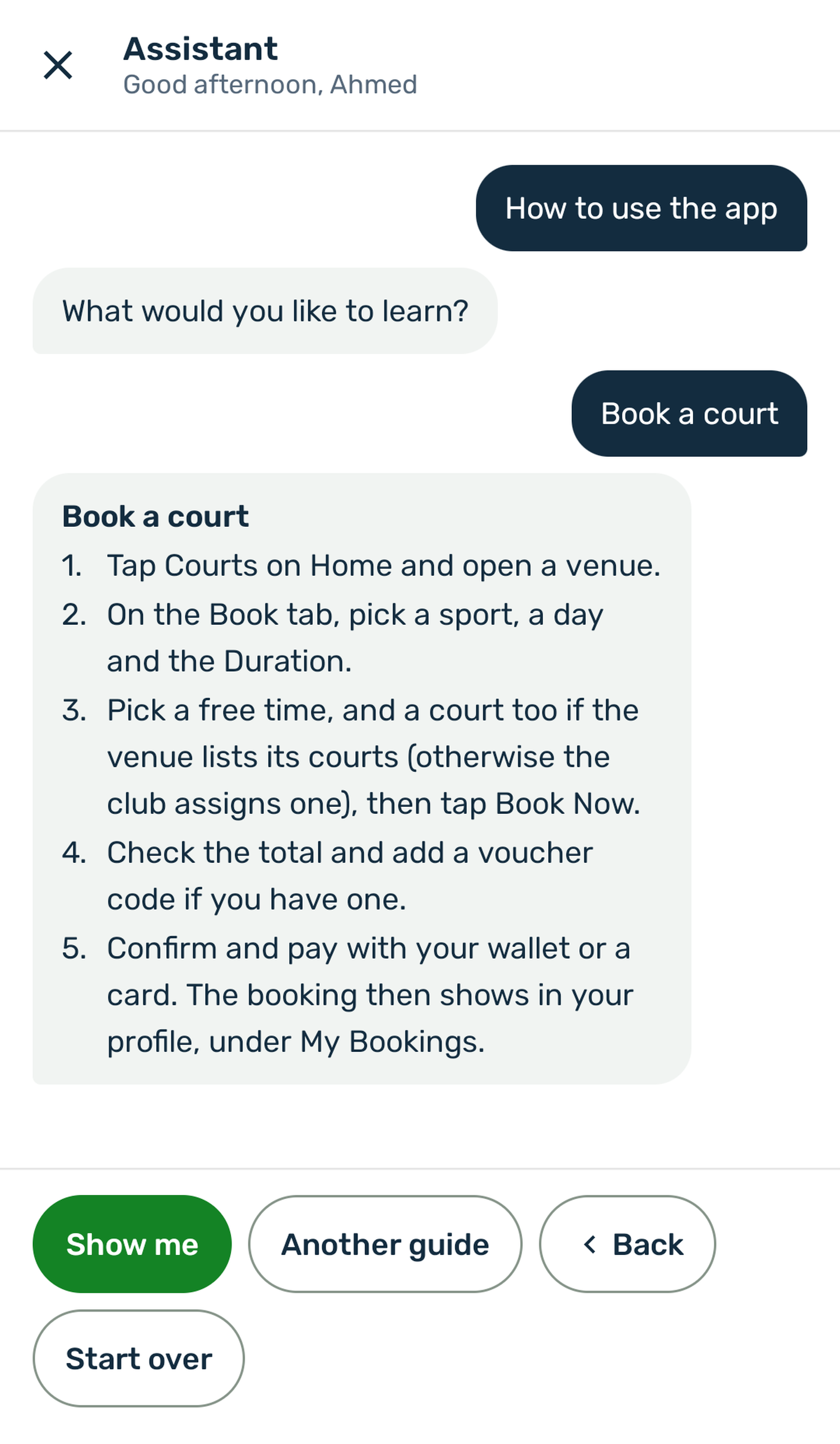
A guide is three to six numbered steps that name the buttons as the app shows them. Under it, Show me opens that part of the app and Another guide goes back to the list. For Create an account and sign in, Show me opens the sign in screen for a guest and the profile for a signed in player.