

Esta página aún no está traducida al español, así que estás leyendo la versión en inglés.
Create a plan
The Membership plans page, creating a plan step by step, English and Arabic side by side, the Plan step, putting plans in order, and what pausing, duplicating and deleting a plan do.
Open Membership plans in the Membership group of the portal menu. The list shows every plan your clubs sell, the lengths each one is sold at, the price it starts from and how many seats are taken.
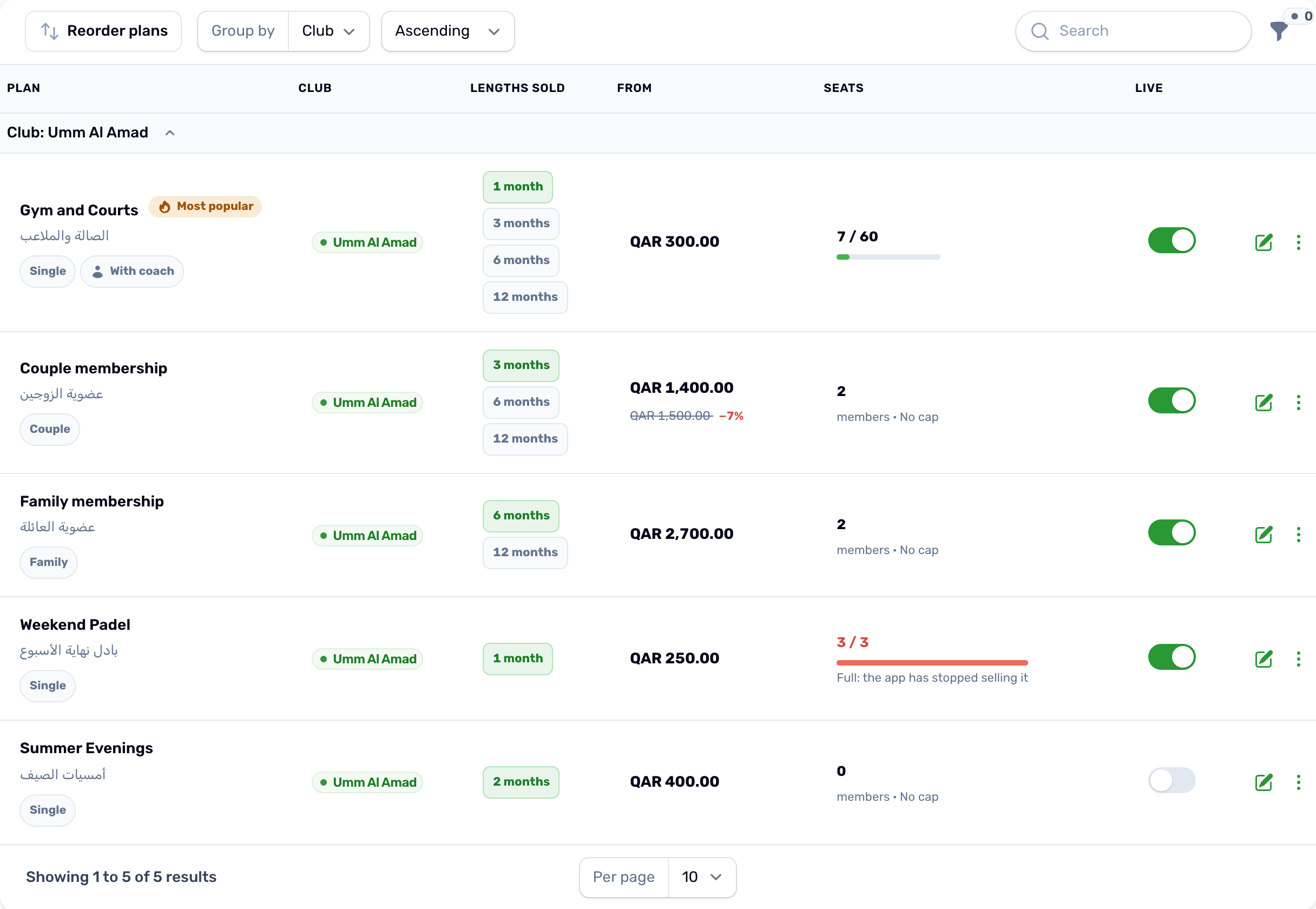
- Lengths sold shows each length. The one in green is the default.
- From is the price of the default length, with the struck price when it has one.
- Seats shows taken against the cap, or the number of members and No cap. A full plan turns red and says the app has stopped selling it.
- Live pauses or resumes sales straight from the list.
You can search, and filter by club, by who the plan is sold to, and by Live and paused, Live only, Paused only or Full.
Create a plan step by step#
Click New plan. A new plan is built in steps: Plan, Price and lengths, What members get, Cancellation, and Coaches when the Coach service is on. Next checks the step on screen and shows anything missing right there, Back returns to the step before, and Create appears only on the last step. Next to the steps is a live preview of the plan card as members see it.
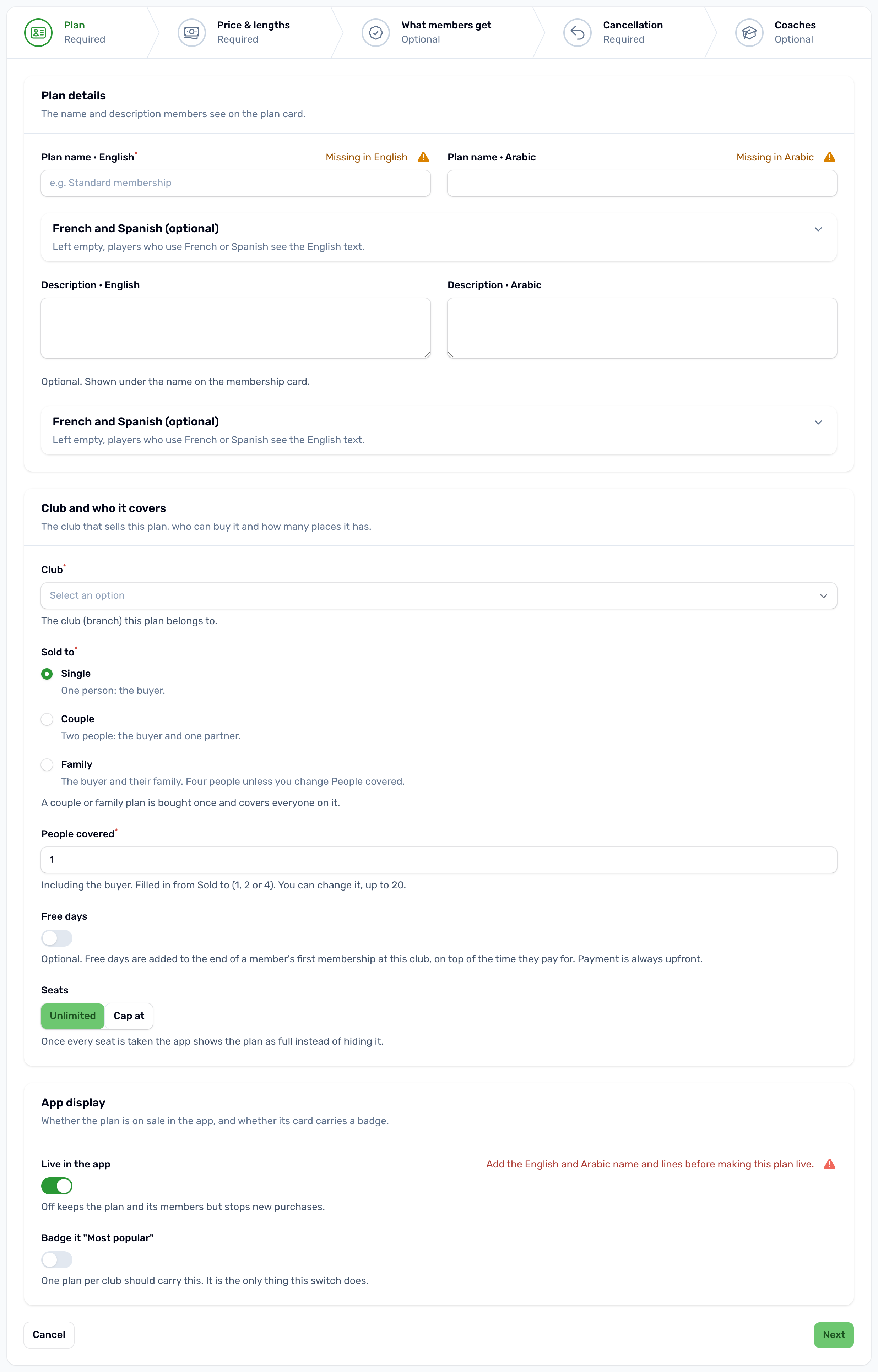
Fields marked with * must be filled in: the plan name, the club, Sold to, at least one length with a price, and the cancellation rule. Steps and sections marked Optional, such as features, discount perks and coaches, can be left empty.
To change a plan later, click the pencil on it. The editor shows the same parts as tabs: Plan, Price and lengths, What members get, Cancellation and Members. With the Coach service on, a Coaches tab sits before Members, see Coaches on a plan. If you save with something to fix, the tab that holds it shows a red count, so you know which tab to open. Members only exists once the plan does.
English and Arabic#
Every name, description, feature line and discount perk line is typed in English and Arabic side by side, with the Arabic box written right to left. French and Spanish sit under each pair in a collapsed section, French and Spanish (optional). Open it only if you want them: a player who uses the app in French or Spanish sees the English text where they are empty, or the Arabic when there is no English either.
An empty English or Arabic box says Missing in English or Missing in Arabic beside it, and a note at the top of the editor lists everything still missing, on every tab. In the Membership plans list, a plan missing either language shows a Missing Arabic or Missing English badge under its name.
A plan that was already live before this rule stays live with its badge, so nothing stops selling by surprise. Once you turn it off, it can go live again only with the missing text added. A duplicated plan is held to the rule too.
Translate missing languages#
Type the plan in one language, then click Translate missing languages next to Card preview language. It fills only the languages that are still empty, for the name, description, features and discount perks, using the card preview language (or English) as the source. Text you typed yourself is never replaced, and prices, lengths and refund amounts are never sent or changed. The translations are drafts: read each language, fix anything that needs it, then click Save or Create. Nothing is saved before that. The button only shows when translation is set up for your platform.
The Plan step#
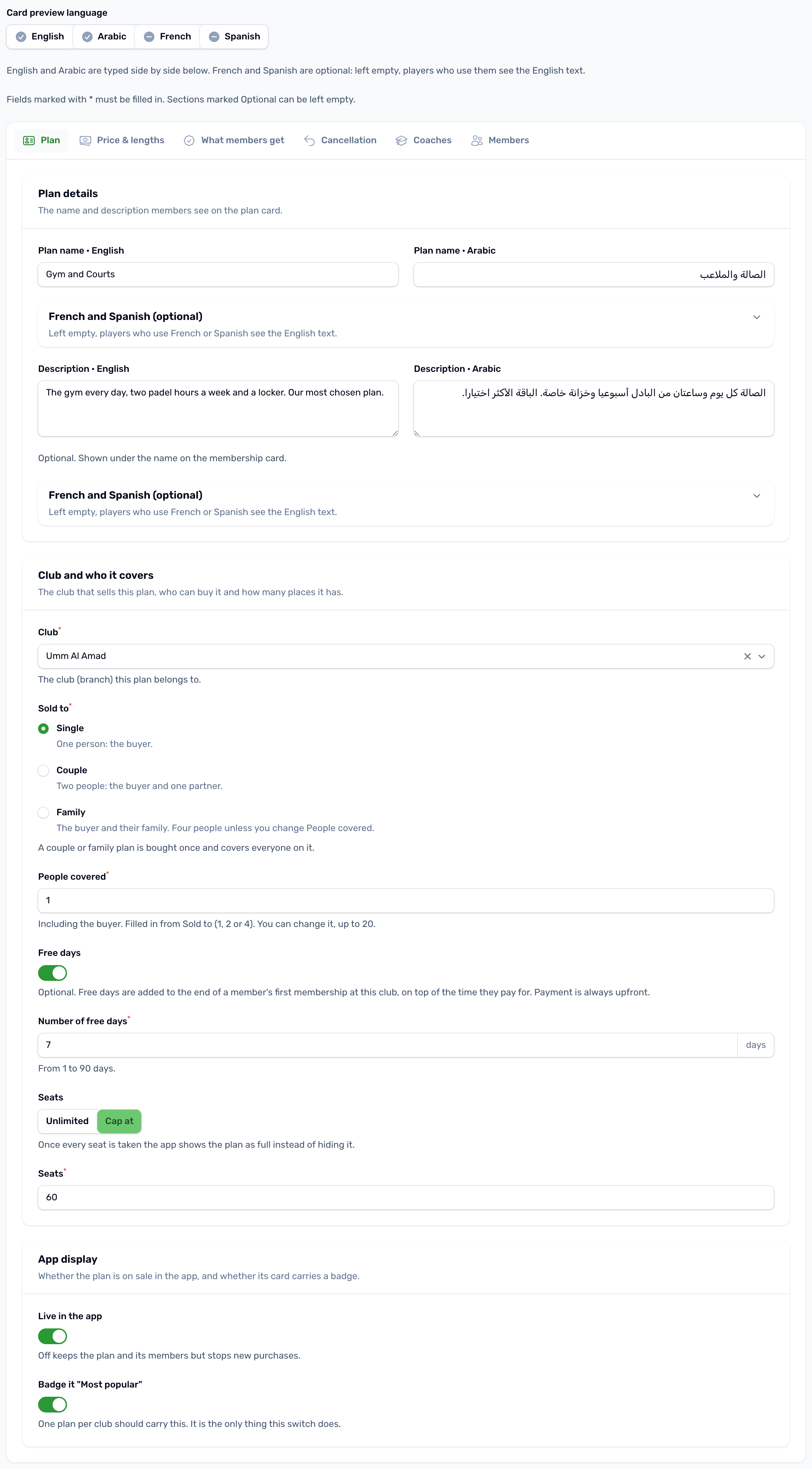
The Plan step reads top to bottom, one field per row.
| Field | What it does |
|---|---|
| Card preview language | Above the steps. Pick English, Arabic, French or Spanish to see the plan card in that language. A red language is missing its name and keeps the plan out of the app; a grey one is optional. |
| Plan name * | English and Arabic side by side. One of them is enough to save a draft; the plan goes live only with both. Shown on the plan card and in its details. |
| Description | Optional. Shown under the name on the plan card. |
| Club * | The venue that sells the plan. |
| Sold to * | Single covers one person, the buyer. Couple covers two people, the buyer and one partner. Family covers the buyer and their family. It also decides which tab of the club page the plan shows under. |
| People covered * | How many people one purchase covers, the buyer included. Choosing Sold to fills it in with 1, 2 or 4. You can change it, up to 20. |
| Free days | Optional and off by default. Switch it on and type a number from 1 to 90. The free days are added to the end of a member's first membership at this club, on top of the time they pay for. A member who has held a membership at the club before gets the paid time only. Payment is always upfront, and free days are never refunded. |
| Seats | Unlimited, or Cap at a number. A seat is held by every paid membership that has not ended, frozen ones included. When all are taken the app shows the plan as Full and no one can subscribe. |
| Live in the app | Under App display. Off keeps the plan and its members but stops new purchases and hides the plan in the app. It can be on only when the name and every line are in English and Arabic. |
| Badge it Most popular | Under App display. Puts a Most popular badge on the plan's default length. |
| With coach | Under Advanced settings, which starts collapsed, and only when the Coach service is off. Marks the plan as the coached version of a plan. |
The other steps are covered in Prices and lengths, What members get and Cancellation and freeze rules.
Put plans in order#
The app shows each club's plans in the order you set, and the order belongs to each club. The Membership plans list is grouped by club.
-
Start
Click Reorder plans above the list. The plans stay under their club headings, and the line above them says Drag a plan to change its place within its club. -
Drag
Drag a plan up or down within its club. A plan dropped under another club goes back to its own club. -
Finish
Click Done reordering.
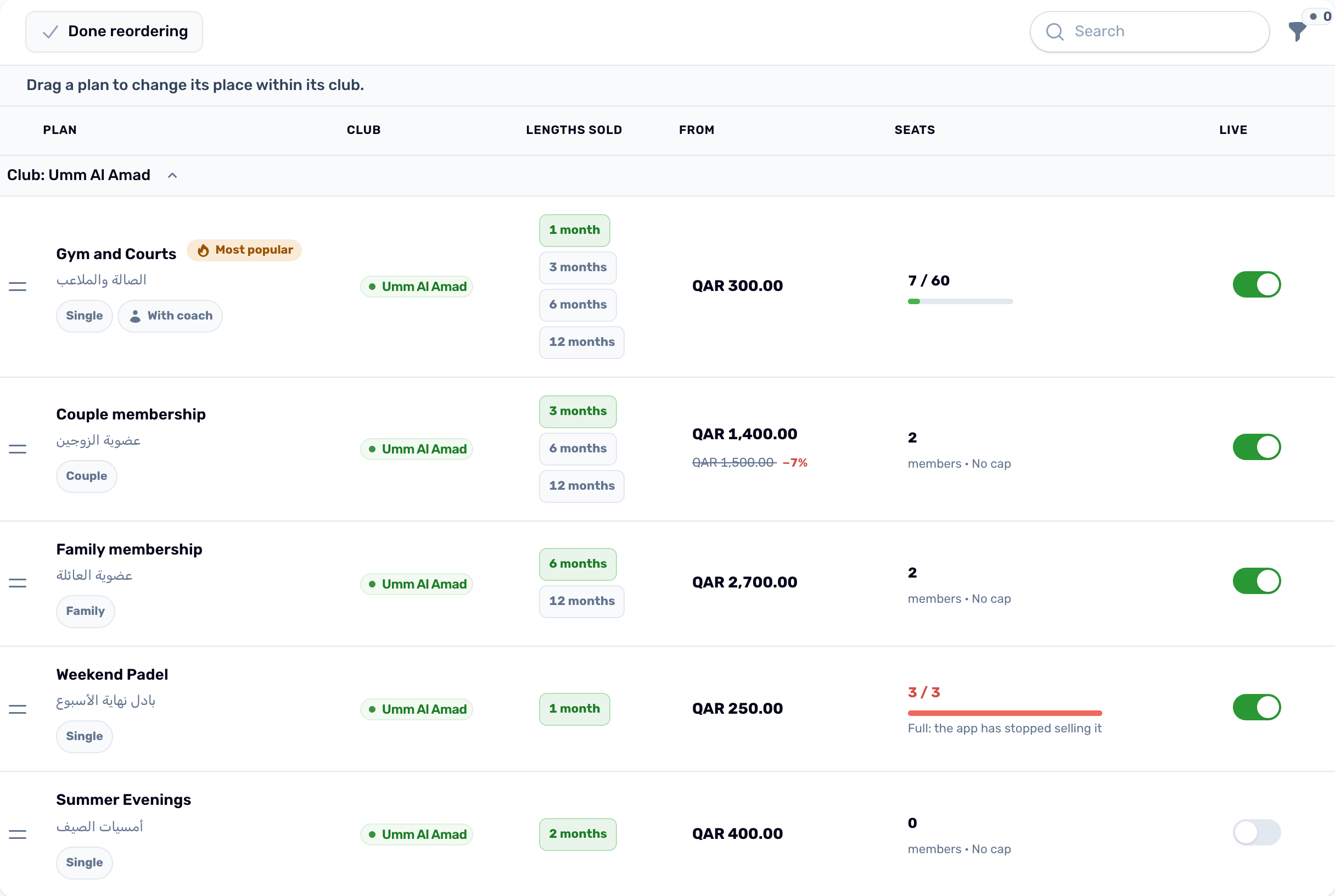
Each club's plans are numbered 1, 2, 3 and so on, with no gaps and no ties, and reordering one club never changes another club's order. A new plan, and a duplicated one, goes to the end of its club's list. The Membership plans tab of a venue in My Venue has the same Reorder plans button.
Duplicate, pause and delete#
- Duplicate copies the plan with its lengths, features and perks. The copy goes to the end of its club's list and is switched off until you turn on Live in the app, which needs the name and every line in English and Arabic.
- Turning off Live is the way to stop selling a plan. Members who hold it keep it.
- Delete plan asks for your password or PIN and tells you how many members hold the plan. The plan disappears from the app. Members who already hold it keep their remaining days.