

Split a pitch
Divide a big court into parts that players book on their own, set up each part like a court, and keep the full pitch bookable or not.
A big court can be shared. Split pitch divides a court, such as an 11 vs 11 football pitch or a sports hall, into parts that players book on their own: two halves, three thirds, four quarters, or a mix. The full pitch stays bookable unless you close it. Splitting is a setting of each court, off until you turn it on. A court that is never split works exactly as before.
Each part is set up like a court of its own, with its own sports, prices, durations, hours, rules, add ons and match settings. The full pitch keeps the court's own settings for full pitch bookings. Players always see a part together with its pitch, as Pitch 1 · Half A, never as a separate court.
Which parts block each other#
A part is real ground, so a booking holds everything that shares that ground:
- A full pitch booking blocks every part for that time.
- A part booking blocks the full pitch and every part that shares ground with it. A half blocks the two quarters inside it. The middle third blocks both halves.
- Parts that share no ground can be booked at the same time by different players.
The rule covers every kind of booking: the app, the portal, matches, tournaments and maintenance closures. Each part card on the Split pitch tab spells it out, for example Also blocks: Full pitch, Quarter 1, Quarter 2.
| Booked at 20:00 | Also taken at 20:00 | Still free at 20:00 |
|---|---|---|
| Full pitch | Every half and every quarter | Nothing |
| Half A | Full pitch, Quarter 1, Quarter 2 | Half B, Quarter 3, Quarter 4 |
| Quarter 1 | Full pitch, Half A | Half B, Quarter 2, Quarter 3, Quarter 4 |
Turn it on#
Split pitch is a service in your plan. If a court has no Split pitch tab, ask Bsporty to include Split pitch in your plan.
-
Open the court
In Courts & Grounds, open the court and go to its Split pitch tab. The court has to be saved once before the tab opens. -
Turn on Split pitch
The switch reads: Let players book a part of this pitch. Booking the full pitch blocks every part, and booking a part blocks the full pitch and any part that shares its ground. -
Pick a layout
Choose how the pitch is divided. On a pitch with no parts yet, the parts are created at once, all Inactive and with no price, and the portal says so, for example 2 parts created. Players see nothing new until a part is active. -
Save changes
Everything else on this tab, such as prices, activations and a later change of layout, is saved with Save changes at the bottom of the page, together with the other tabs. The top of the tab says No unsaved changes or You have unsaved changes. -
Set up each part
Give each part a price and activate it, see the checklist below. Players see the parts once at least one is active.
No training on a split pitch#
A split pitch, and each of its parts, never hosts classes or courses. A class needs the whole court for its time, and a part booking could take ground from under it. So:
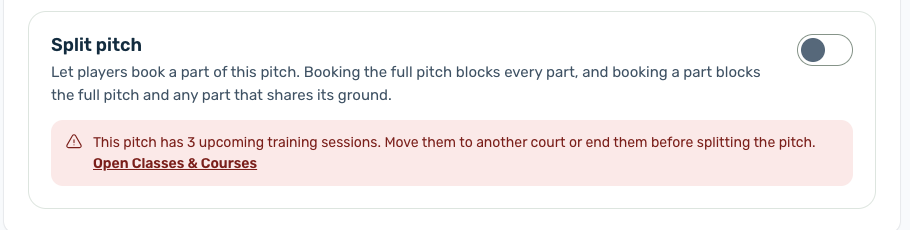
- Turning Split pitch on is refused while the court has upcoming training, for example This pitch has 3 upcoming training sessions. Move them to another court or end them before splitting the pitch. The link opens the court's Classes & Courses tab.
- On a split pitch the Classes & Courses tab only says Training is not available on a split pitch. Sessions and courses need a court that is not split.
- A split pitch is not offered when you pick a venue for a class or a course.
Choose a layout#
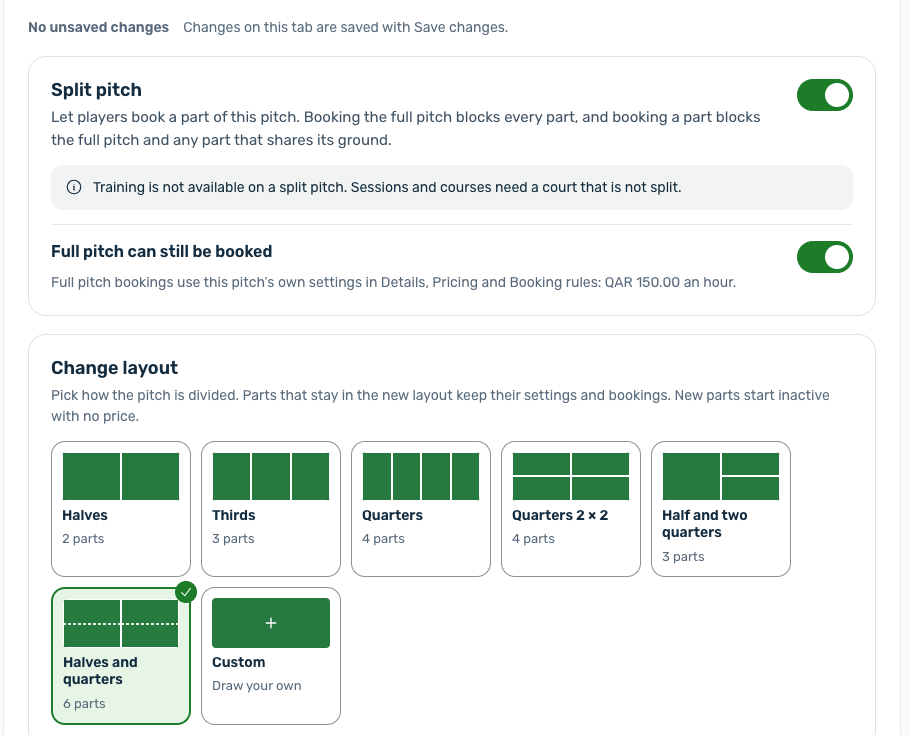
Under Layout each choice is a picture card with its parts drawn and how many there are:
| Layout | Parts |
|---|---|
| Halves | Half A and Half B, side by side |
| Thirds | Third 1, Third 2 and Third 3, side by side |
| Quarters | Four strips side by side, Quarter 1 to Quarter 4 |
| Quarters 2 × 2 | Four quarters, two in each half |
| Half and two quarters | One half, and two quarters in the other half |
| Halves and quarters | Both halves and the four quarters inside them, 6 parts. Players choose between a half and a quarter |
| Custom | Draw your own, from 1 to 8 parts |
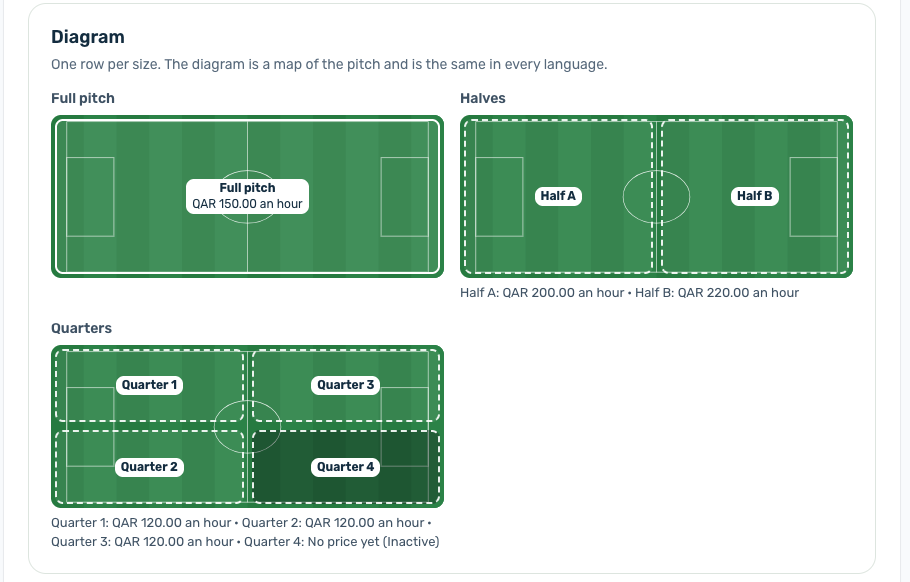
Once parts exist the heading reads Change layout, see below. The Diagram under the cards shows one row per size, with each part's price, or No price yet and Inactive. The diagram is a map of the pitch, so it is the same in every language.
Part cards and the checklist#
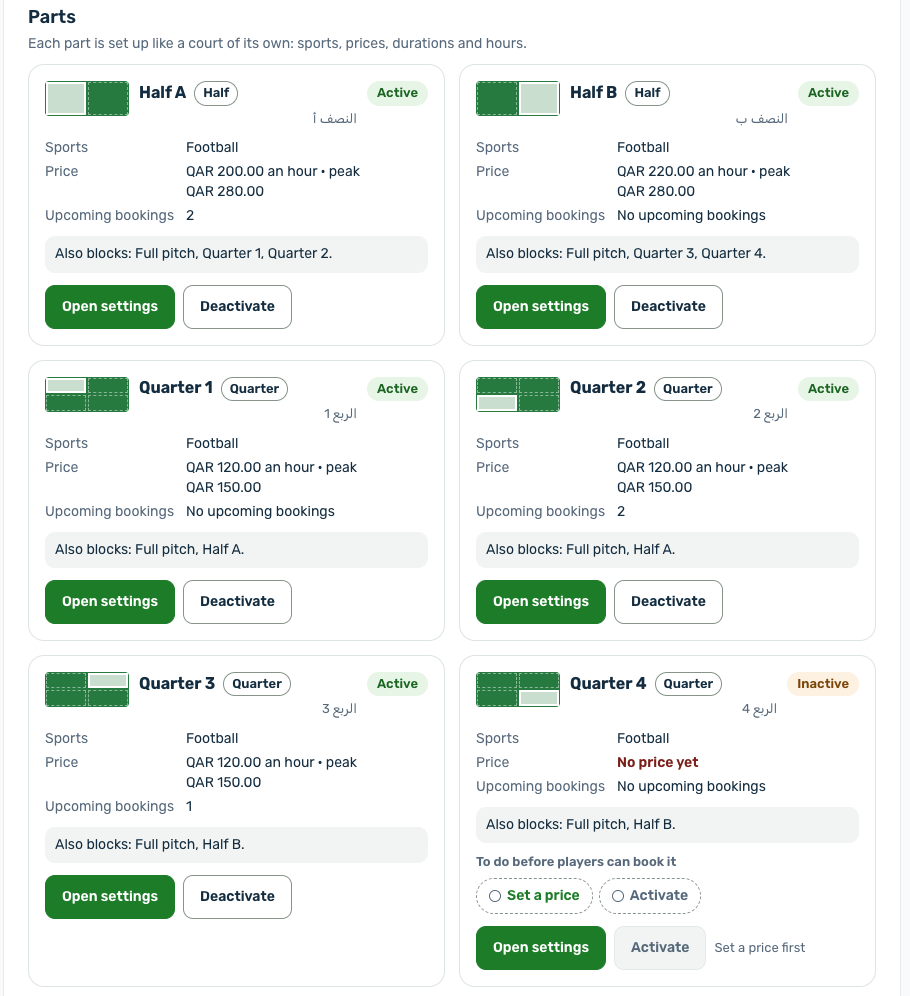
Under Parts each part has a card with a small map of where it lies, its name, its size and Active or Inactive, then:
- Sports, Price (the hourly and peak price, or No price yet) and Upcoming bookings.
- Price per hour and Peak price per hour, which is optional. Type them on the card and they are saved with Save changes. Activate becomes available as soon as the hourly price has a value, so a part can be priced and activated in one save. More price settings opens the part's Pricing tab for dayparts, duration prices and custom days.
- Also blocks: what a booking on this part holds as well.
- While the part cannot be booked, To do before players can book it lists Add opening hours when the part has none, Set a price, which moves to the price field, and Activate.
- The buttons Open settings and Activate or Deactivate. Until the part has a price, Activate is unavailable and says Set a price first. In a custom layout there is also Reshape.
Deactivate asks first, for example Deactivate Half A? The part keeps its bookings and they stay valid, but players cannot make new bookings on it until you activate it again. The last part players can book cannot be deactivated while the full pitch is closed to players.
A problem on the tab, such as two parts with the same name or a part left without a sport, stops the save and is counted at the top: Fix 1 problem to save.
Open a part's settings#
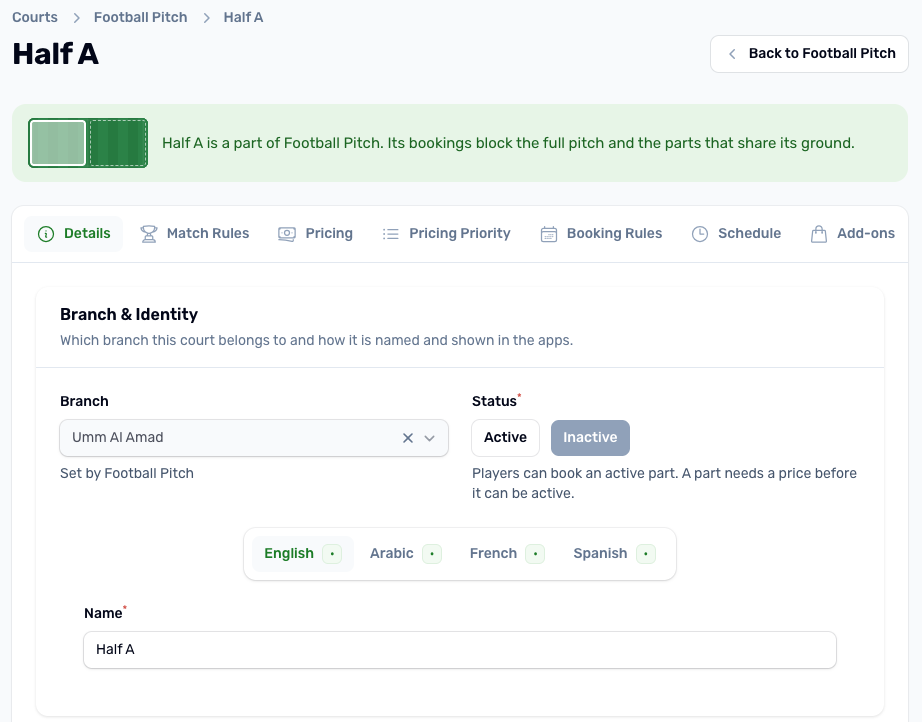
Open settings opens the part in the normal court editor, with a banner such as Half A is a part of Football Pitch. Its bookings block the full pitch and the parts that share its ground. Back to Football Pitch returns to the pitch. A part that a change of layout will create opens once you save; until then its card shows Save and set up parts, which saves the page and stays on this tab.
- The Branch is set by the pitch and cannot be changed. Name, sports, play formats, audience and matches work as on any court.
- Status: players can book an active part. A part needs a price before it can be active.
- Every other tab works as for any court: Match Rules, Pricing, Pricing Priority, Booking Rules, Schedule, Add ons and Policies & Media. A part has no Classes & Courses tab and no Split pitch tab.
- Leave the photos empty to use the pitch's photos.
A new part starts as a copy of the pitch's working hours, booking lengths, how far ahead it can be booked, multiple slots, cancellation policy and cutoff, audience, surface, indoor, amenities, policies, sports and matches setting. For football the play format is set by size: 7v7 on a half, 6v6 on a third, 5v5 on a quarter. Prices, peak and daypart rates, duration prices, free slots, custom price days, add ons and photos start empty, so a half never sells at the full pitch price by accident. After that each part is independent: changing the pitch does not change its parts, except for the hours prompt in Opening hours, closures and free slots.
Price check#
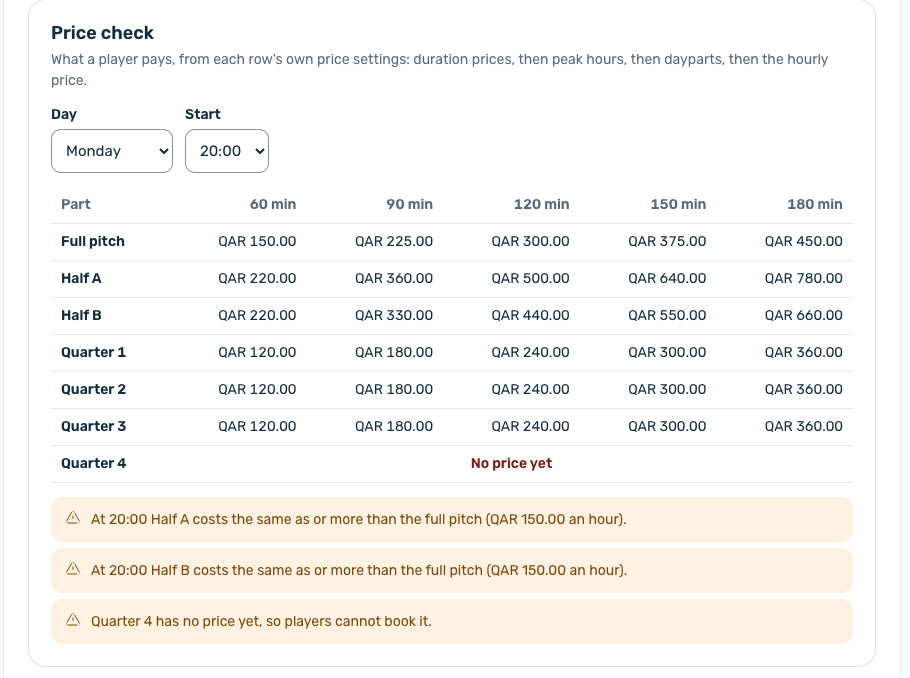
Price check shows what a player pays for the full pitch and for each part, for a Day and a Start you pick, for every length offered. It reads each row's own prices in the same order as the app: duration prices, then peak hours, then dayparts, then the hourly price. Under the table it warns about a part that costs the same as or more than the full pitch, a part with no price and a part with no peak price.
Full pitch on or off#
Full pitch can still be booked is on by default. Full pitch bookings then use the pitch's own settings in Details, Pricing and Booking rules. Turn it off when the pitch is only ever sold in parts: players then see only the parts. Staff, tournaments and official matches can still book the full pitch. It can be turned off only once at least one part can be booked.
Draw your own parts#
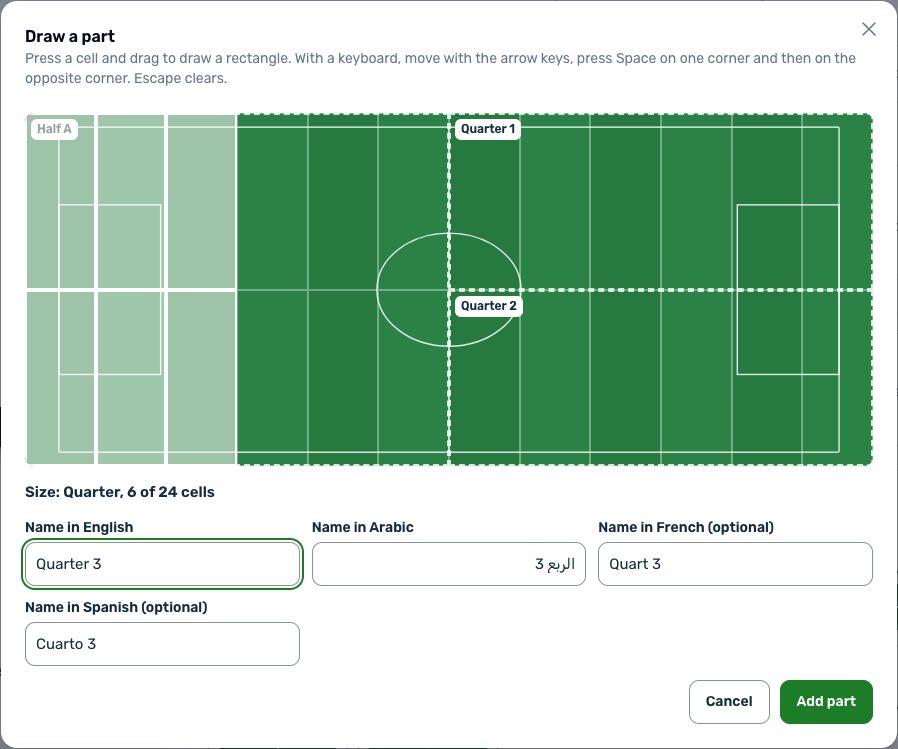
The Custom card opens Draw a part: a grid over the pitch. Press a cell and drag to draw a rectangle, or use the arrow keys and press Space on one corner and then on the opposite corner. The size shows as you draw, for example Size: Quarter, 6 of 24 cells. Name the part in English and in Arabic, French and Spanish are optional, and choose Add part.
A part must be a half, a third, a quarter, a sixth, an eighth, two thirds or three quarters of the pitch, and the same rectangle cannot be added twice. A custom layout has from 1 to 8 parts. Reshape redraws a part, but only while it has no upcoming bookings.
Change the layout#
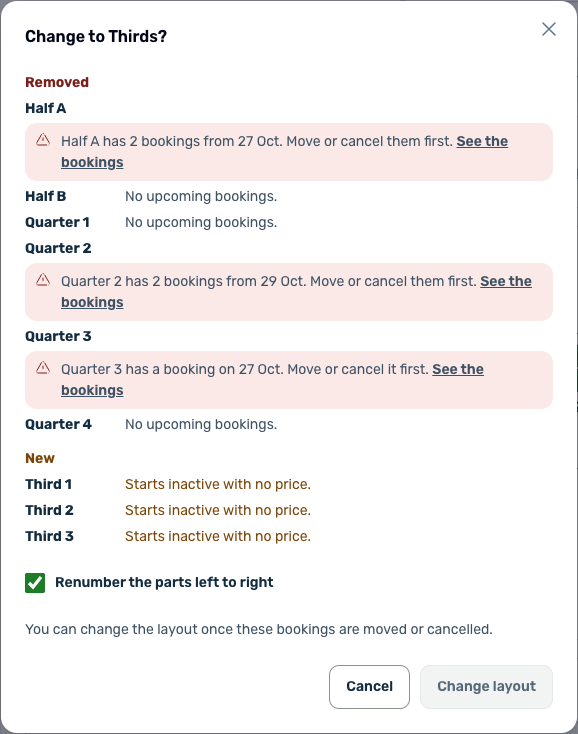
Picking another card under Change layout opens a comparison, such as Change to Thirds?, before anything changes:
- Kept: parts whose ground is in both layouts keep their settings and their bookings.
- Removed: parts that disappear. A removed part with upcoming bookings stops the change, for example Half A has 2 bookings from 27 Oct. Move or cancel them first., with a See the bookings link. Change layout stays unavailable until they are moved or cancelled.
- New: new parts start inactive with no price.
Renumber the parts left to right renames every part of a size in order. It is on by default when no kept part has upcoming bookings, and off for a custom layout. A confirmed change is written with Save changes. Prices already paid stay on their bookings.
Turn splitting off#
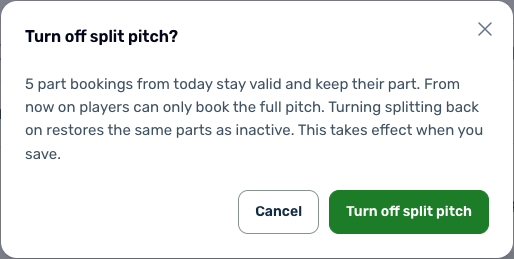
Turning Split pitch off asks Turn off split pitch? and names the part bookings still to come. They stay valid, keep their part and still block the full pitch. From then on players can only book the full pitch, and every part becomes inactive. Turning splitting back on brings back the same parts, inactive. It takes effect when you save.
In the courts list#
Courts & Grounds lists the pitch once, with a badge such as Split · 3 parts. Parts never appear there, nor in the app as courts of their own. A split pitch is not deleted while any of its parts has bookings to come.
Book a slot How players choose a size and a part in the app. The calendar and bookings Split pitches in the calendar, the Part select and exports.